Four great seasons - one outstanding destination!
UKG Ready
UKG Ready
The UKG system can be accessed from any County PC using a web browser. If you would like to access the system via the app, follow the directions below. The app is not required, unless you need mobile punching.
Login Types
There are two login types.
County Email - you have an email address that ends in WarrenCountyNY.gov. You will use your email address and normal Windows password to login.
Non-County Email - you do not have a WarrenCountyNY.gov email. You will use your employee number and password you created.
Two Factor Authentication
2FA is required when logging into the app and is handled differently based upon your login type.
For County Email logins, if you don't already have it, install the Microsoft Authenticator app on your mobile device. When you first install it, there is no setup. Upon first login to UKG Ready, you will be prompted on how to connect your County login to Microsoft Authenticator.
** Please note that a specific permission needs to be granted to your O365 account. If you attempt to login and receive a message that the login was successful but no permisson to access, please contact the IT department.
For Non-County Email logins, if not already done, you will be prompted to setup 2FA.
UKG Ready Mobile App
Download and install UKG Ready onto your device. If searching for the app, ensure you download UKG Ready as there are a few different UKG apps.
** Please note: this app is required if you need mobile punching ability.
 | iPhone Users | Android Users |
When you first launch the app, you will be asked to allow UKG Ready to use your location. This is required if you will be punching remotely.
Select North America for your region and enter mmh1566 for the Company Short Name.
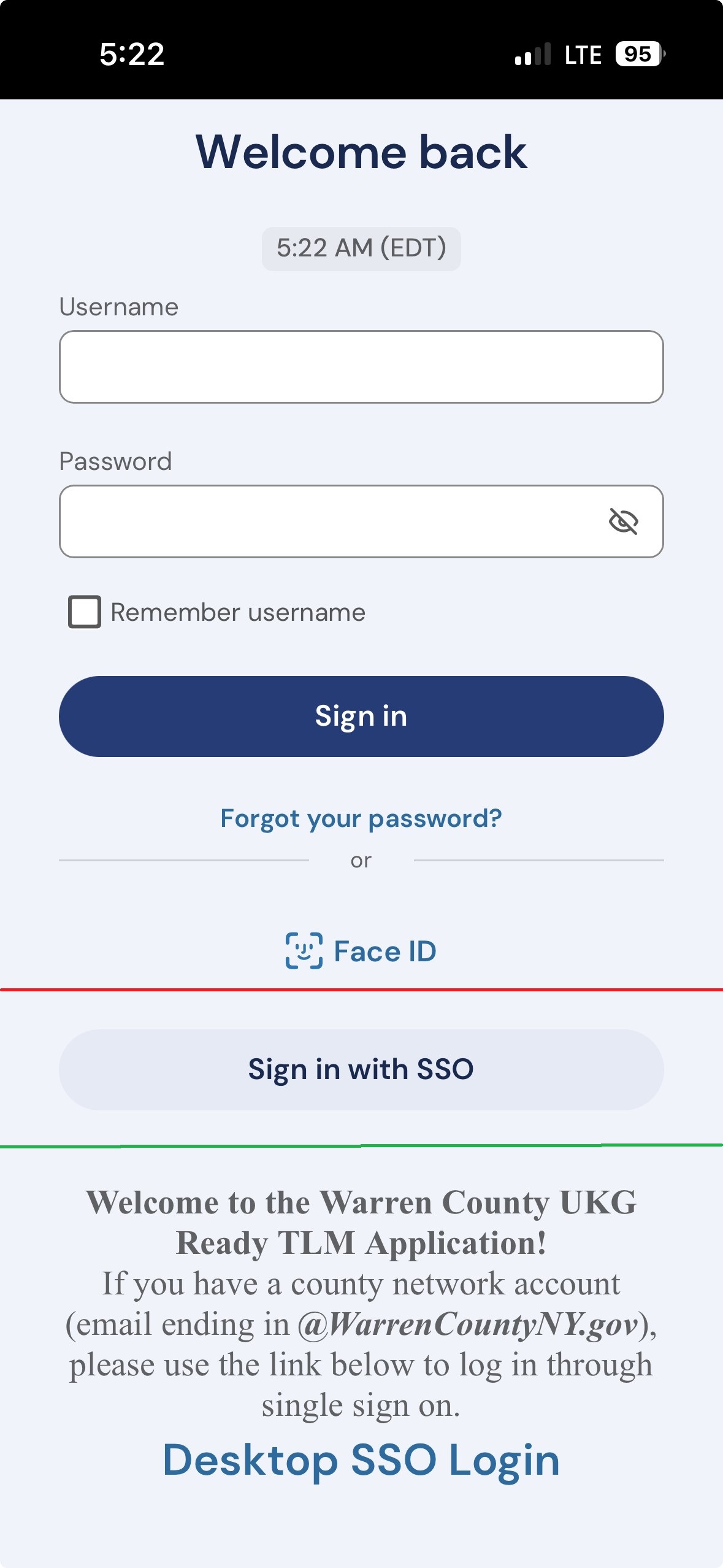
At the login screen, there are two options. (screen shot below clarifies the login screen sections)
If you have a Warren County email address that ends in WarrenCountyNY.gov, tap the "Sign in with SSO" button.
If you do not, enter your Employee Id in the Username box and your password.
When logging in, exact steps can't be defined as they vary depending on your device, initial or successive login and preferences set. Follow the prompts to complete the login.
Quick Training Videos
Navigating the app
Punching in an out
Timesheets
Schedules
Time-off request
Common Issues
iPhone and Authenticator
If logging in requries Microsoft Authenticator, you will get a pop-up to use Authenticator. Before tapping the pop up, make a note of the numeric code being presented. After entering the code in Authenticator, return to the UKG app by tapping UKG Ready displayed in the top left corner. A few seconds after returning to the UKG Ready app, it should proceed into the app.
Login Screen
The area above the red line is for non-SSO users.
Users logging in with their employee number. If enabled, mobile punching done from here.
The area between the red line and the green line is for SSO users to access the app. Users logging in with a WarrenCountyNY.gov email address. If enabled, mobile punching done from here.
The area below the green line is for SSO users but will access the application via a web browser. All the same functionality of the app with the exception of mobile punching.